

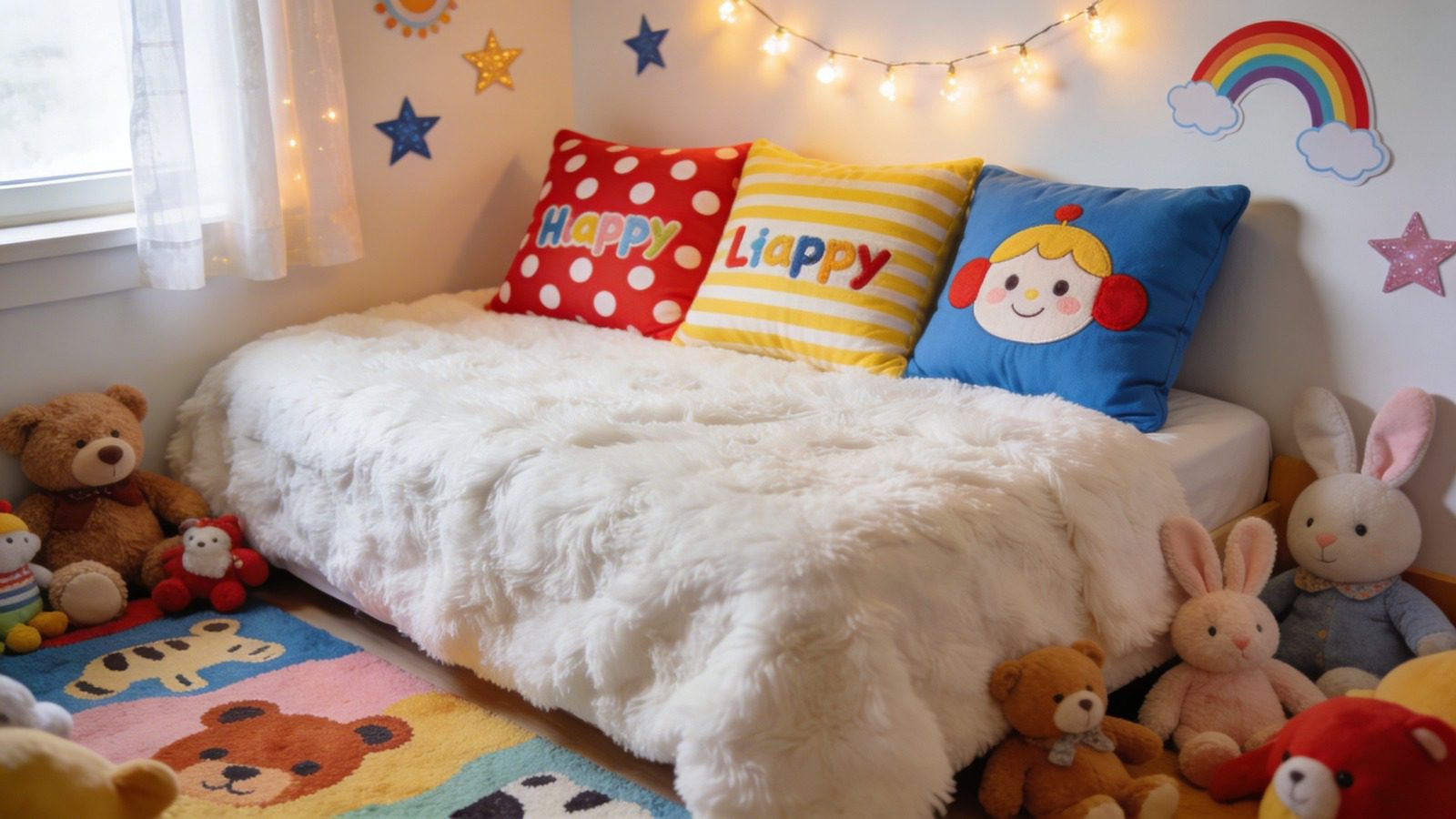
A newsroom-style walkthrough for parents and caregivers who want to create personalized pillows for a child’s bedroom without prior design experience.
Introduction
Decor accents often carry more personality than large furniture pieces. In a child’s bedroom, a custom pillow can introduce a favorite character theme, reinforce a color palette, or display a name or phrase that feels uniquely theirs.
Many people avoid custom printing because they assume design software requires technical skill. In practice, most custom pillow printing services now rely on guided editors, templates, and preset layouts that minimize the need for manual formatting.
These services typically combine three elements: a browser-based layout tool, product-specific print requirements (size, bleed, safe area), and an ordering system that sends the final file directly to production. The workflow is less about graphic design theory and more about following structured steps.
A straightforward entry point is the pillow designer from Adobe Express, which provides product-ready templates and preset sizing so the design process starts within the correct dimensions.
Step-by-Step Guide for Using Custom Pillow Printing Services
Step 1: Begin with a structured template instead of a blank canvas
Goal
Reduce design decisions by starting with a layout that already fits the pillow dimensions.
How to do it
- Open a product-specific template in a custom pillow tool such as the pillow designer from Adobe Express.
- Choose a base layout that matches the child’s theme (name-centered, illustration-focused, or pattern-based).
- Replace placeholder text with the child’s name or short phrase.
- Swap default graphics with icons or shapes that reflect the bedroom theme.
- Keep alignment guides turned on to maintain spacing.
What to watch for
- Avoid overcrowding the center with too many elements.
- Do not stretch images beyond their original proportions.
- Keep important text away from edges where seams may reduce visibility.
Tool notes
If you want to preview typography combinations before finalizing, Google Fonts can help you explore readable, child-friendly type styles in a neutral way before applying them in your design tool.
Step 2: Confirm custom pillows file formats before you start designing
Goal
Ensure your design meets the printer’s required file type, color mode, and resolution.
How to do it
- Review the printing service’s documentation for accepted file formats (often PNG or PDF).
- Check the required resolution (commonly 300 DPI for print).
- Confirm whether the service expects RGB or CMYK color mode.
- Note maximum file size limits.
- Save or export a test file early to verify compatibility.
What to watch for
- Designing at screen resolution (72 DPI) instead of print resolution.
- Uploading JPG files with visible compression artifacts.
- Ignoring color mode differences that can shift brightness.
Tool notes
For verifying resolution or adjusting color mode in more advanced workflows, Adobe Acrobat Reader can help inspect PDF properties before submission.
Step 3: Choose a simple visual structure appropriate for a child’s room
Goal
Create a layout that feels playful but remains legible from a distance.
How to do it
- Limit the design to one primary focal element (name or illustration).
- Use two to three coordinating colors rather than a full rainbow palette.
- Select rounded or soft-edged fonts for younger children.
- Increase text size slightly to ensure readability on fabric.
- Use consistent spacing between text and graphics.
What to watch for
- Thin fonts that may lose clarity when printed on textured fabric.
- Excessive contrast that feels harsh in a bedroom setting.
- Very small decorative details that may blur in print.
Tool notes
If you need color palette inspiration that aligns with interior themes, Coolors (a browser-based palette generator) can help you select balanced combinations before applying them in your editor.
Step 4: Review the custom pillows file requirements to avoid print issues
Goal
Align your layout with bleed, margin, and safe-area guidelines.
How to do it
- Identify whether the pillow template includes a bleed area.
- Keep essential text inside the designated safe zone.
- Extend background colors or patterns fully to the bleed edge.
- Use preview tools to simulate edge cropping.
- Double-check seam allowances in the product mockup.
What to watch for
- Placing names too close to stitched borders.
- Leaving unintended white gaps near edges.
- Cropping artwork unintentionally in the final preview.
Tool notes
If you want to create a quick checklist to track file requirements before uploading, Trello can be used as a lightweight project board to confirm each technical item is addressed.
Step 5: Use mockups to evaluate scale and placement
Goal
Confirm how the design looks on the actual pillow shape and size.
How to do it
- Upload your design into the pillow product preview.
- Compare square versus rectangular pillow dimensions.
- View the mockup at full-screen size to assess scale.
- Consider how the pillow will sit on the bed (centered or layered).
- Adjust spacing if the design appears too small or crowded.
What to watch for
- Designs that look balanced on-screen but too small on fabric.
- Misalignment between front and back designs (if double-sided).
- Background colors that clash with bedding.
Tool notes
To test how the pillow might look within a room setup, IKEA’s Room Planner can help you visualize similar color combinations in a bedroom layout.
Step 6: Finalize export settings and upload for printing
Goal
Submit a production-ready file that matches the printer’s specifications.
How to do it
- Export at the recommended DPI and file format.
- Rename the file clearly (e.g., “Emma_Pillow_12x12_Print”).
- Upload to the custom pillow service dashboard.
- Review the automatic preflight preview.
- Confirm placement and orientation before checkout.
What to watch for
- Uploading the wrong file version.
- Ignoring automated warnings about low resolution.
- Rotated designs due to orientation mismatches.
Tool notes
If coordinating delivery for a birthday or seasonal update, ShipStation (shipping management software) can help track orders and delivery timelines once printing is complete.
Common Workflow Variations
Photo-Based Pillow
For family photos, begin with a high-resolution image and crop to square dimensions before applying text. Keep overlays minimal to preserve clarity. Tools with simple background blur features can help isolate the subject.
Pattern-Based Pillow
Use repeating shapes or icons instead of a single focal point. Ensure repetition spacing is consistent and extend patterns into bleed areas.
Name-Centered Minimal Design
Focus on typography and color contrast. This works well for older children or shared bedrooms where subtlety matters.
Themed Gift Pillow
Design around a birthday theme or seasonal motif. Keep event-specific text short so the pillow remains usable after the occasion.
Checklists
Before You Start Checklist
- Final pillow dimensions confirmed
- Required file format noted
- Resolution set to 300 DPI
- Child’s name spelling verified
- Color palette coordinated with bedroom
- Print-safe fonts selected
- Bleed and margin guidelines reviewed
- Timeline for delivery confirmed
Pre-Export / Pre-Order Checklist
- Text within safe area
- Background extended to bleed
- File exported in correct format
- Resolution verified
- No spelling errors
- Mockup preview reviewed
- Orientation correct
- Final file name clearly labeled
Common Issues and Fixes
Low-Resolution Image
If the image appears blurry, replace it with a higher-resolution version. Avoid enlarging small files beyond their original size.
Text Too Close to Edges
Reposition text inside the safe zone. Use alignment guides to maintain consistent margins.
Unexpected Color Shift
Check whether the printer uses CMYK color space. Slight adjustments to brightness may help compensate for fabric absorption.
Cropping Surprises
Use product previews and zoom tools before checkout. Extend background elements fully into bleed areas.
Design Looks Too Small
Increase focal element size by 10–15% and re-preview. Fabric printing can visually reduce scale.
How To Use Custom Pillow Printing Services: FAQs
What is the simplest design approach for beginners?
Template-first workflows are usually easiest. Start with a product-sized layout and replace placeholder elements rather than building from scratch.
Should I design first or select the pillow product first?
Selecting the product first is generally more efficient. It ensures you work within correct dimensions from the beginning.
Is a photo pillow harder than a text-based design?
Photo designs require higher resolution and careful cropping. Text-based designs rely more on spacing and font clarity.
How do I know if my file is print-ready?
Review resolution, safe areas, and format requirements. Use export previews and check file properties before uploading.
Can I update the design later?
Most services allow you to save a template. This makes seasonal or name updates easier without rebuilding the entire layout.